From layers to a 10k collection
A start-to-finish walkthrough of the GARU desktop app: folders in, 10,000 tokens and their metadata out.
In short
To make a 10,000-token collection in GARU, prepare one image per trait in a folder per category, drop the folder into Build, set the token count to 10,000 and tune rarity. Generate in Curate, keep the best and regenerate the rest, then download a ZIP of artwork and metadata from Launch.
A generative collection is a handful of folders and a lot of decisions. This walkthrough takes you from trait art to 10,000 finished tokens with metadata, using the free GARU desktop app. The same steps work in the web generator.
Before you start: do you have enough traits?
Every token is one trait from each category, so the number of possible tokens is every category's trait count multiplied together. Four categories with 10 traits each give 10,000 combinations, which is too tight for 10,000 unique tokens once rarity and rules come in.
Aim for several times more combinations than tokens. Six categories with 8 to 12 traits each gives you hundreds of thousands. GARU's Analytics tab in Curate shows your possible combinations, so you can check as you go.
1. Prepare the art
Make one image per trait, all at the same canvas size, with transparency where layers overlap. Transparent PNG works best. GARU also takes JPG, WebP, GIF and SVG.
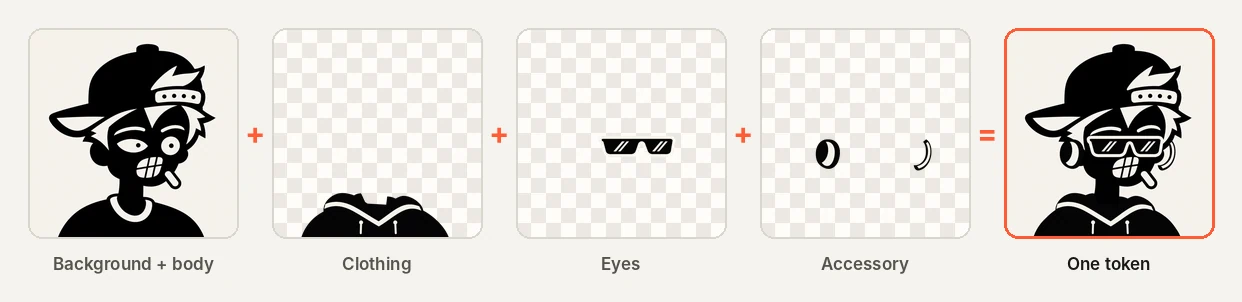
Put each image in a folder named for its category, and the category folders in one collection folder:
Night Owls/
  Background/
    Dusk.png
    Midnight#300.png
  Body/
    Brown.png
    Snow#40.png
  Eyes/
    Wide.png
    Sleepy.png
  Hat/
    None.png
Crown#5.pngWant some tokens to have no hat? Add a transparent image, like None.png, so "no hat" is a trait you can weight like any other.
2. Build: import and set the size
Download and open GARU, then create a project from the project name in the top bar. Drop your collection folder onto Build → Attributes.
Set the token count to 10,000. That's the whole collection, including any one-of-one tokens you add later. GARU generates the rest at random.
Check the layer order. GARU stacks one trait from each category in the saved order, so Background goes at the bottom and Hat near the top. Reorder categories in Build → Templates and look at the preview after each change.
3. Tune rarity
Give each trait a tier: Common, Rare, Epic, Legendary or Mythic. Then choose Auto-Balance. It shares out each category's supply by tier, roughly 55% Common, 25% Rare, 12% Epic, 6% Legendary and 2% Mythic, and you can fine-tune any trait's target by hand.
Each trait shows its target editions next to what the last batch actually produced. Small differences are normal. Generation is random, and the target is a goal, not a promise.
4. Add rules
Some traits shouldn't meet. A crown doesn't sit on a hood, and a laser eye looks wrong behind sunglasses. Open Build → Rules, pick a trait, and choose how it relates to others:
| Rule | What it does |
|---|---|
| Doesn't mix with | Never appears with the selected traits. |
| Always pairs with | Always appears with the selected traits. |
| Requires one of | Appears only with at least one of the selected traits. |
| Only mixes with | Appears only alongside the selected traits. |
| Appears with | Brings all the selected traits along when it appears. |
Tag related traits, like every hat in Build → Tags, and a rule can use the tag. It then covers every trait with that tag, including ones you tag later.
5. Curate
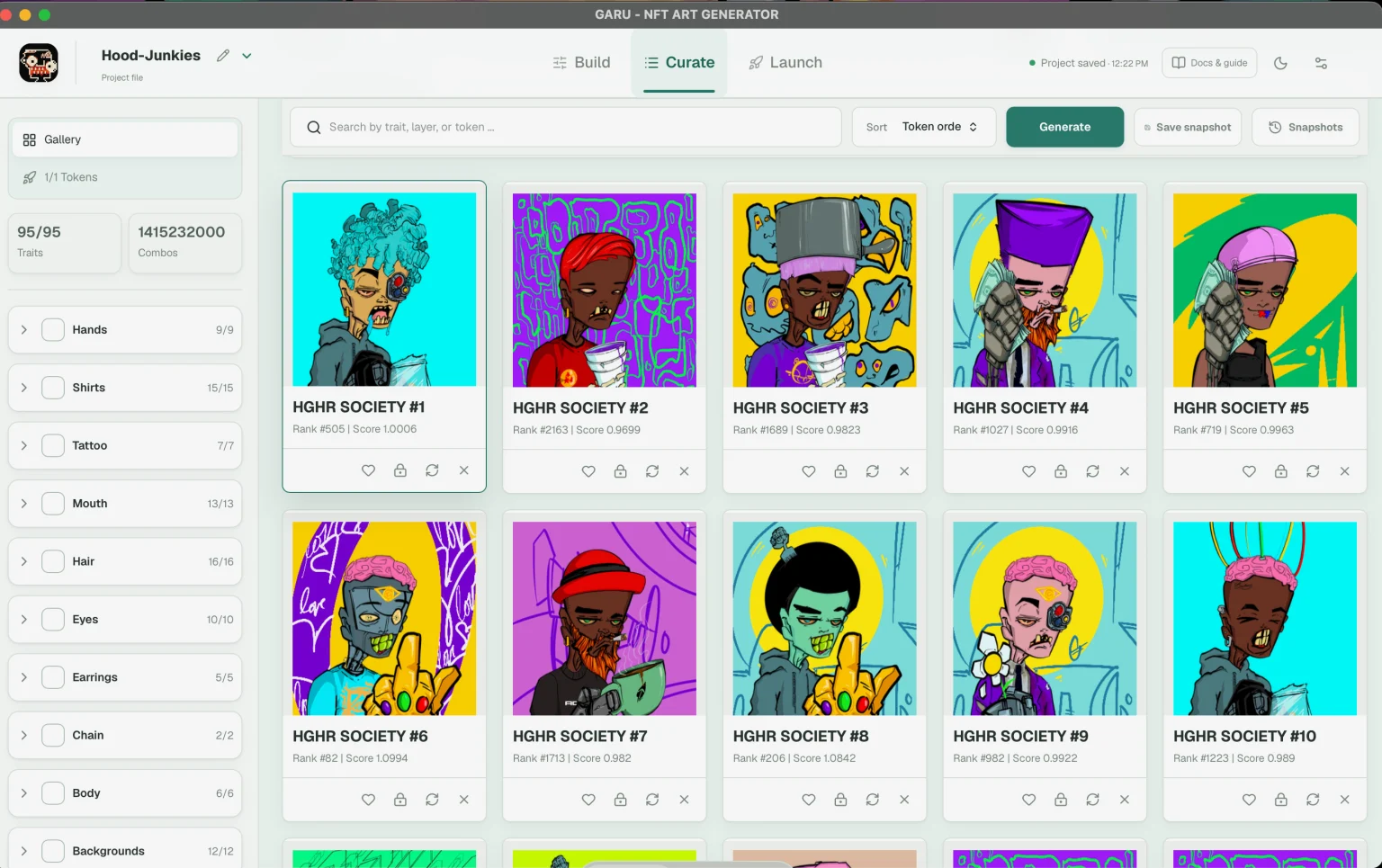
Open Curate and choose Generate. You get the whole batch in one gallery, each token ranked by rarity.
- Keep a token you love with the heart. Kept tokens survive the next generation.
- Regenerate a token you don't like, or filter by trait to find every token with one you want to fix.
- Check Analytics to see how often each trait really appeared against its target.
- Add one-of-one artwork in 1/1 Tokens. 1/1s count toward the 10,000 and are numbered with the rest.
When the batch looks right, save a snapshot of the project so you can always come back to this exact state.
6. Launch
Open Settings and check the collection name, token name pattern (for example {{collection}} #{{id}}), description, image size and format, symbol and royalties. Artwork can be up to 4,096 px.
Then open Launch and choose Download ZIP. It holds:
- one image per token, numbered by token ID
metadata/<id>.jsonfor each token, plusmetadata/metadata.jsonwith all of themopensea.csv, with a column per trait categoryexport-manifest.json, with the collection settingsgaru-bundle.json, a summary of the collection for the GARU website
Open a few images and their metadata files to check the IDs line up before you upload anywhere.
FAQ
How long does it take to generate 10,000 tokens?
It depends on your computer, your image size and your rules. In the desktop app, everything runs on your own computer, so nothing waits on a server.
Can I make the token numbers random?
Yes. Randomize token # in Curate shuffles the order. Do it before you export, then check the numbers again.
What if I want to move to another computer halfway through?
Use Export backup from the project menu to save a .garu file, then Import backup on the other computer. Layer order, trait names, tags and rules come with it.
Next step
Download GARU and build your first batch. For every option in detail, read the Build, Curate and Settings and export docs.
Keep reading